Don’t miss out on email communications from Quest! Take these two important actions to ensure you receive all Quest emails.
Step-by-step instructions to add Quest to your safe senders list
New Outlook
Add recipients to Safe Senders List in new Outlook
1. If you have more than one account added to new Outlook, select the account you want to add the settings to.
2. Select Settings > Mail > Junk email.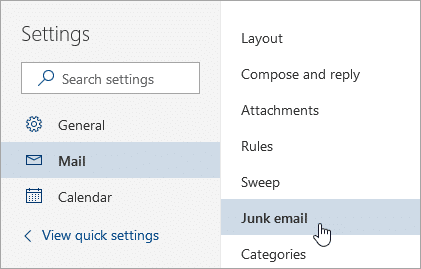
3. Under Junk email, scroll down to Senders, and select the Safe senders and domains tab.
4. Select + Add safe sender, and enter the email address for the recipient you want to add.
5. Select OK, and then select Save.
Don’t automatically include contacts in the Safe Senders List in new Outlook
1. Select Settings > Mail > Junk email.
2. Under Security options, clear the Trust email from my contacts check box.
Classic Outlook
Add recipients to Safe Senders List in classic Outlook
To add people to your Safe Senders List, do the following:
1. On the Home tab, in the Delete group, select Block Sender (or it might say Junk), and then select Junk E-mail Options.

2. On the Safe Senders tab, check the Automatically add people I e-mail to the Safe Senders List box.
3. On the Safe Senders tab, click the Add button, and add each of the following domains:
- @questoraclecommunity.org
- @go.questoraclecommunity.org
- @mg.questoraclecommunity.org
Don’t automatically include contacts in the Safe Senders List in new Outlook
1. Click the Mail icon, and then click the Home tab.
2. In the Delete group, click Junk, and then click Junk Email Options.
3. On the Safe Senders tab, clear the Also trust email from my Contacts check box.
Gmail
1. Log in to your Gmail account on a desktop browser.
2. Click the gear icon in the upper-right corner and select See All Settings.

3. Navigate to the Filters and Blocked Addresses tab at the top of the settings page.
4. Click on “Create a new filter”.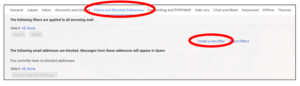
5. In the “From” field, enter the email address or domain you want to add to your safe senders list. For example, you can enter a specific email address or use an asterisk before the domain (e.g., *@outlook.com) to allow all emails from that domain.
6. Click Create filter.
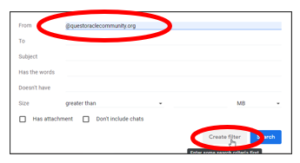
7. In the next window, check the box next to Never send it to spam.
8. Click Create filter to finalize the process.
Alternatively, you can add senders to your safe list by:
1. Opening an email from the sender you want to add.
2. Hovering over the sender’s name or email address.
3. Clicking Add to Contacts.
Mac Mail
1. Go to the Mail tab and click Preferences.
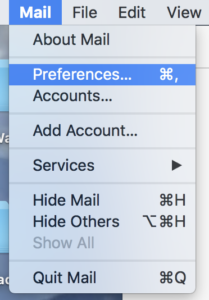
2. Click the Rules tab then Add Rule.
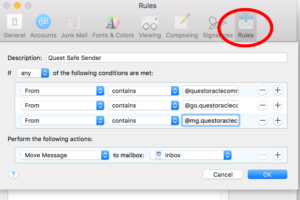
3. Set the first dropdown menu item to any, so that it reads: If any of the following conditions are met. In the next two dropdown menus, select From in the first, and Ends with for the second.
4. In the Ends with field, type @questoraclecommunity.org. Click the + sign and add @go.questoraclecommunity.org, and finally + @mg.questoraclecommunity.org.
5. In the Perform the following actions section set the three dropdown items to: Move Message, to the mailbox: Inbox (or another preferred folder).
6. Click OK to save the rule.
Yahoo
1. Navigate to Settings icon, then click More Settings from the Yahoo Mail menu.
2. Select Filters and hit Add new filter.
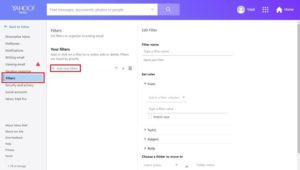
3. In the From field, enter @questoraclecommunity.org.
4. Repeat step 3 for @go.questoraclecommunity.org and @mg.questoraclecommunity.org
AOL
1. Log in to your AOL account.
2. Open Contacts from the left navigation pane.
3. Click the New Contact icon and enter the domain @questoraclecommunity.org. Click the Add Contact button located at the bottom.
4. Repeat step 3 for @go.questoraclecommunity.org and @mg.questoraclecommunity.org
Safelist the Quest domains on your organization’s server
To ensure that Quest emails are not caught in your organization’s spam filters, we recommend safelisting the following domains at the server level: @questoraclecommunity.org and @go.questoraclecommunity.org.
This is especially important for government, healthcare, education and financial institutions where the safelisting process is required.
Need messaging to use with your IT department? See below:
[Company name] has recently purchased a corporate membership with Quest Oracle Community, an independent, non-profit user group providing training and education Oracle customers.
In order to receive emails from Quest, including membership notices, I’d like to request that two Quest email domains (@questoraclecommunity.org and @go.questoraclecommunity.org) be added to our organizations safe sender list at the server level.
This will help ensure that all Oracle users at [company name] can participate in Quest community activities and fully benefit from our membership. Thank you!
Have questions or need additional assistance? Contact engagement@questoraclecommunity.org.