
December 8 - December 10, 2026
Virtual
Register now to save! Advance registration ends December 4, 2026!
Oracle Cloud Summit – Virtual Attendee Checklist
We can’t wait to see you online December 8 – 10!
Be sure you’re prepared and ready for 3 days of virtual learning & fun!
Accessing the Event Platform
You should have received an email from Quest Oracle Community with subject line “Log in to Oracle Cloud Summit – Virtual to build your agenda!” with a unique link for log in to the virtual event platform, Virtual Pro. If you did not receive it, please be sure to check your spam folder.
Return to Oracle Cloud Summit – Virtual Platform
Still having trouble? Follow the steps below:
- Visit the platform login page.
- Enter the email address you used to register.
- Click “Continue with email.”
- Enter login code “OCSV26.”
- Then click “Verify”
Earn CPE credits at Oracle Cloud Summit – Virtual
HR professionals, great news! Your participation at Oracle Cloud Summit – Virtual can help you earn credits through expanded Quest Oracle Community partnerships with the Society for Human Resources Management (SHRM) and the National Association of State Boards of Accountancy (NASBA).
National Association of State Boards of Accountancy (NASBA)

Enter your information to receive NASBA credit.
Society for Human Resource Management (SHRM)

For more information or to claim credit, log in to the SHRM site and enter Activity ID: 26-T5HDJ.
Frequently Asked Questions
- How do I log in to Oracle Cloud Summit – Virtual?
- How do I build by customized agenda?
- How do I edit my profile?
- How do I post to the Event Feed?
- How do I search for attendees & speakers?
- How do I view all sessions happening during a timeslot?
How do I log in to Oracle Cloud Summit – Virtual?
You should have received an email from Quest Oracle Community with subject line “Log in to Oracle Cloud Summit – Virtual to build your agenda!” with a unique link for log in to the virtual event platform, Virtual Pro. If you did not receive it, please be sure to check your spam folder.
Still having trouble logging in? Contact us and we’ll help you out!

How do I build my customized agenda?
Go to the Agenda Tab in Virtual Pro. Filter sessions by Day & Track. Click on the session and more info. Click Add to my schedule.
To add the session to your personal calendar, click on the “Add to Your Calendar” icon.
How do I edit my profile?
To edit your profile, click on your avatar, then Edit Profile. After updating your content, be sure to save the changes.

How do I post to the Event Feed?
In the event feed section, click the status box. You may also click on the attachment option to post photos or videos.

How do I search for attendees & speakers?
In the people section, you will find two types of tabs (Speaker & Attendee).

How do I view all sessions happening during a timeslot?
To view all the sessions happening during a timeslot, use the arrows on the right-hand side to scroll through the list.

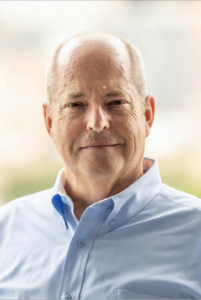
David Lyle
CIO at Carolina Biological
David Lyle is a respected technology executive, business leader, and longtime advocate for professional growth and leadership development. As Chief Information Officer at Carolina Biological, David brings decades of experience leading organizations through strategic \transformation, innovation, and operational excellence.
David has been deeply involved with the Quest Oracle Community, serving on the Quest Board of Directors from 2011 to 2020 and as Board Chair from 2014 to 2016. During his tenure, he helped guide the organization’s strategic direction while fostering collaboration and community engagement across the Oracle ecosystem. In 2017, he founded CommercePros and subsequently served as its Chair through 2019, helping establish a vibrant community focused on Oracle Commerce professionals.
Known among his peers as a trusted advisor, counselor, and mentor, David has dedicated countless hours to helping others navigate their careers and develop as leaders. He is recognized for his thoughtful guidance, strategic perspective, and genuine commitment to supporting the success of those around him. Colleagues frequently describe him as a leader of integrity who builds strong relationships, generously shares his expertise, and consistently invests in developing talent.
David’s leadership style combines sound judgment, humility, and a solutions-oriented mindset. Whether guiding organizations through complex challenges or mentoring emerging leaders, he is known for going above and beyond to help others achieve meaningful results and reach their full potential.
As a Quest Emerging Leaders Mentor, David is passionate about helping the next generation of technology and business leaders build confidence, expand their perspectives, and accelerate their professional growth.
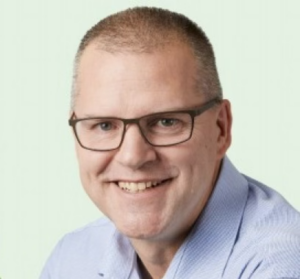
Doug Hayes
Vice President of IT and Procurement
Doug Hayes is a highly experienced technology leader with more than 25 years of success driving enterprise technology strategy, business transformation, and operational excellence across a variety of industries. Currently serving as Vice President of IT and Procurement, Doug has built a career focused on aligning technology investments with business goals, enabling growth, and delivering measurable value through innovative solutions and strong leadership.
Throughout his career, Doug has led large-scale enterprise application initiatives, ERP transformations, cloud technology implementations, and global system integrations. His experience spans leadership roles at Vetsource, Banfield Pet Hospital, ESI, Holiday Retirement, and Columbia Sportswear, where he successfully guided organizations through complex technology changes while fostering collaboration between IT and business teams.
At Vetsource, Doug led teams responsible for enterprise applications, infrastructure, pharmacy automation systems, and technology enablement, supporting rapid organizational growth and driving business efficiencies through strategic technology investments. Earlier in his career, he played key leadership roles in Oracle Cloud, ERP, analytics, supply chain, and customer relationship management implementations, earning a reputation for delivering complex programs on time and with lasting business impact.
Known for his practical leadership style and commitment to partnership, Doug excels at building high-performing teams, developing future leaders, and creating strong relationships across organizations. He is passionate about helping businesses leverage technology as a strategic enabler while cultivating environments where individuals can learn, grow, and contribute at their highest potential.
Doug’s extensive experience leading enterprise technology organizations has given him a unique perspective on change management, organizational alignment, and leadership development. He understands the challenges emerging leaders face and is committed to sharing lessons learned from decades of navigating transformation, building teams, and delivering results.
As a Quest Emerging Leaders Mentor, Doug is dedicated to helping participants strengthen their leadership capabilities, broaden their strategic thinking, and confidently navigate the opportunities and challenges that come with advancing their careers.
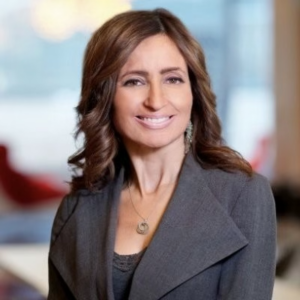
Maria Aiello
Chief Operating Officer, Clarity Building Controls
Maria Aiello is an accomplished technology and business executive with a distinguished career spanning information technology, digital transformation, real estate technology, and organizational leadership. Currently serving as Chief Operating Officer at Clarity Building Controls, Maria is widely recognized for her ability to align technology strategy with business objectives, drive innovation, and deliver transformative outcomes across complex organizations.
Throughout her career, Maria has held senior leadership positions including Global Head of Real Estate & Mortgages Technology at Manulife Investment Management, Vice President and Technology Leader at PwC, and Chief Information Officer roles with multiple organizations. Her experience spans enterprise technology strategy, business transformation, analytics, cybersecurity, and emerging technologies, making her a respected voice in both the technology and real estate industries.
Beyond her executive leadership roles, Maria is deeply committed to developing future leaders and advancing the technology community. She serves as an adjunct professor, teaches business analytics, and has mentored entrepreneurs through the Colliers Techstars PropTech Accelerator. Her extensive board and advisory experience includes leadership positions with the Proptech Council, Institute of Real Estate Management (IREM), HMG Strategy, and numerous technology and industry advisory boards.
A recognized industry leader, Maria has been honored as a GlobeSt Woman of Influence and has earned recognition for her contributions to business process transformation and technology leadership. She is known for fostering collaboration, encouraging innovation, and helping organizations and individuals navigate change in an increasingly digital world.
As a longtime contributor to professional communities and leadership development initiatives, Maria brings a unique perspective that combines executive experience, strategic vision, and a passion for mentoring others. She believes in empowering emerging leaders to think strategically, embrace continuous learning, and build the confidence needed to lead through transformation and growth.
As a Quest Emerging Leaders Mentor, Maria is excited to share her expertise in leadership, technology strategy, and career development while helping participants expand their professional networks, strengthen their leadership capabilities, and achieve their long-term career goals.
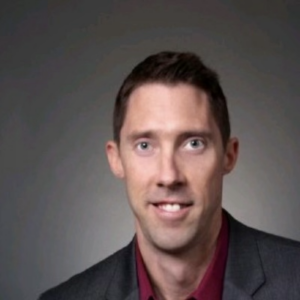
Michael Carney
Michael Carney is a seasoned technology executive and transformational leader with more than 25 years of experience helping organizations leverage technology to drive business value, operational excellence, and organizational growth. Throughout his career spanning manufacturing, consulting, and nonprofit sectors, Michael has successfully led enterprise-scale technology initiatives, digital transformation programs, ERP modernizations, and cloud adoption strategies while building high-performing teams that consistently deliver results.
Currently serving as Vice President of Information Technology at Komline, Michael has held senior leadership roles with organizations including Dewberry, AARP, and Honeywell. He is widely recognized for his ability to develop strategic technology roadmaps, lead complex enterprise programs, and translate technical solutions into meaningful business outcomes. His expertise spans enterprise applications, solution architecture, data platforms, agile delivery, and technology-driven organizational transformation.
A passionate advocate for leadership development, Michael believes that successful transformation starts with people. Throughout his career, he has focused on mentoring cross-functional teams, fostering collaboration, building stakeholder relationships, and creating environments where individuals and organizations can thrive. His leadership style combines strong business acumen, technical depth, and a commitment to helping others grow professionally.
Michael has also made significant contributions to the Quest Oracle Community, serving on the Quest Executive Board and as its Past Chairman. In those volunteer leadership roles, he helped guide the organization’s strategic direction, strengthen community engagement, and advance opportunities for Oracle users to learn, connect, and share best practices.
As a Quest Emerging Leaders Mentor, Michael brings a wealth of experience in technology leadership, strategic planning, and organizational transformation. He is committed to helping emerging leaders broaden their perspectives, navigate career challenges, develop leadership confidence, and maximize their impact within their organizations and the technology community.